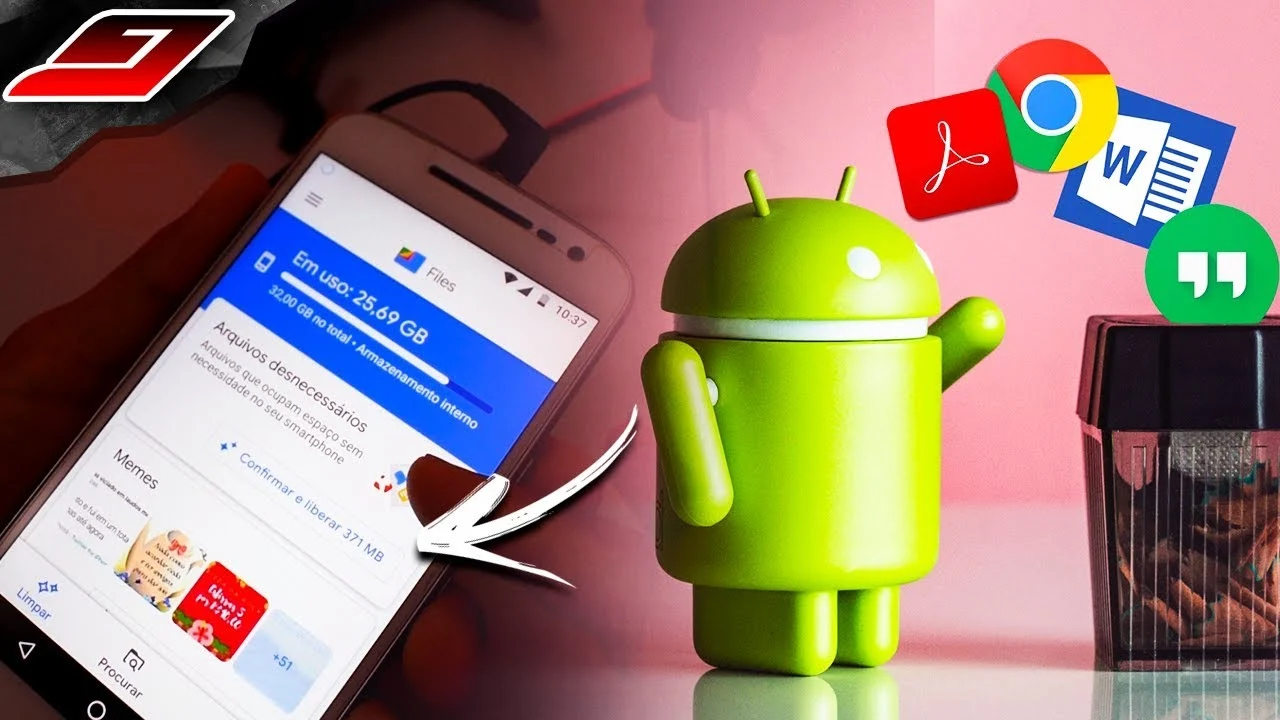
Memory cleanup: forgotten folders that are consuming your space.
 Put Rodrigo Oliveira
When your phone warns you it's full, your attention usually goes to photos and apps. However, the space is often in places no one opens: the downloads folder, media files from uninstalled apps, accumulated screenshots, and duplicate copies of the same image. Before installing a free memory cleaner app, It's worth visiting those folders — because that's where the easy gigabytes are.
This guide covers the most common hiding places, explains what each one contains, and shows how to clean them without deleting anything you need.
The Downloads folder
It's the universal storage for your phone. PDF invoices, receipts, saved browser images, installers downloaded once, and documents you opened last year end up there. Nothing in this folder is automatically deleted, and the content just keeps growing.
Open your file manager, go to Downloads, and sort by size. Delete large and old files. If there are important documents, move them to a cloud folder first—that way they're easily accessible without taking up space on your device.
Screenshots and repeated images
Screenshots of conversations, receipts, addresses: they accumulate by the hundreds and are almost never reviewed. Added together, they take up more space than you might imagine, and they also clutter your gallery and cloud backup.
Similarly, there are duplicates. The same photo saved from a conversation, forwarded, and saved again, appears three times in storage. Files by Google There is a specific section for duplicate files and another for old screenshots, both free and uncomplicated.
Folders left behind by removed applications
When an app is uninstalled, the system deletes its private area—but not what it saved in the shared area. Photo editors leave projects, recorders leave audio files, games leave data packets. These folders become orphaned, with technical names, and can add up to several gigabytes on a phone that's been used for years.
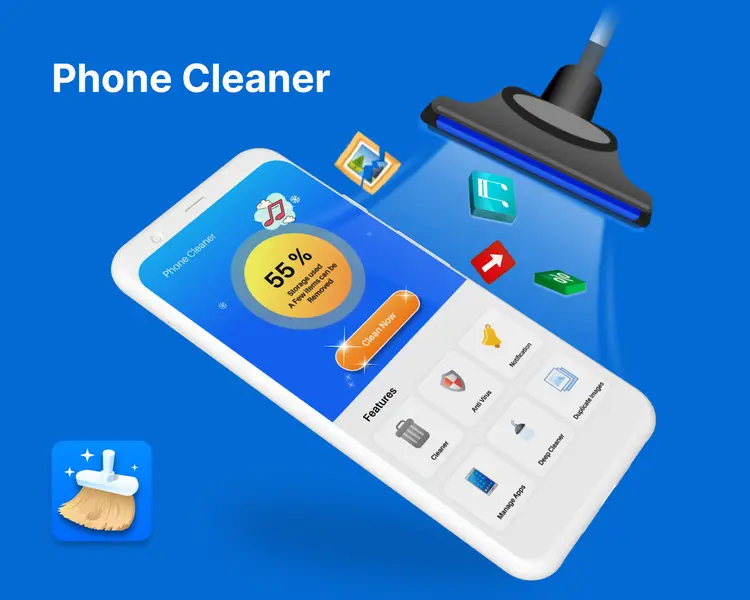
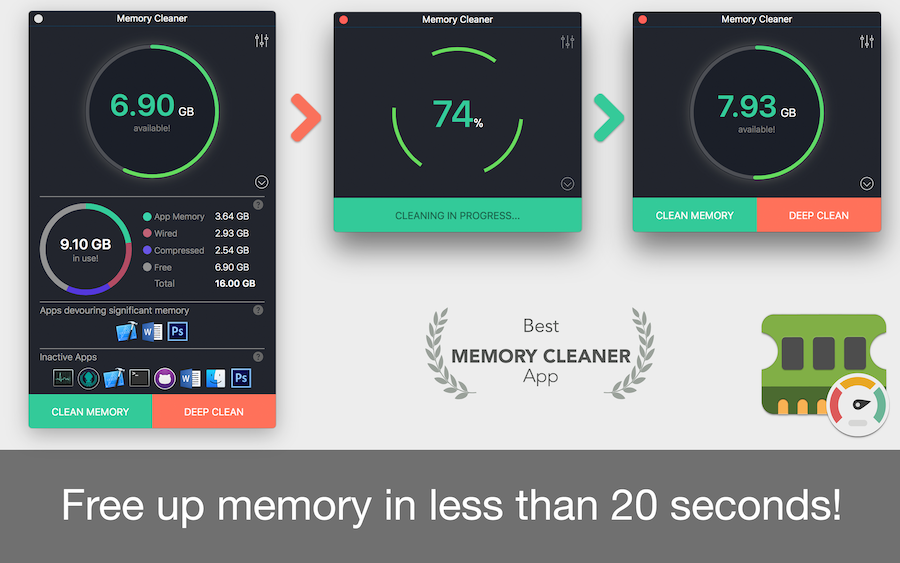
O SD Maid 2/SE It's the most transparent tool for this task: it identifies the leftovers, shows the complete list, and only deletes them after your confirmation. CCleaner It is AVG Cleaner They also locate some of these files, with ads in the free version.
Messaging app media
It's worth repeating because it's the silent champion: everything that arrives in a group is saved on the device. On WhatsApp, the path is... Settings > Storage and data > Manage storage, This section contains lists of large files and frequently forwarded items. Deleting this media does not delete the conversations. Take the opportunity to disable automatic video downloads, otherwise the problem will return in weeks.
Short video apps and streaming services save previously watched clips and downloaded episodes. It's worth checking each one: most have a dedicated downloads screen where you can remove what you've already viewed.
The trash can you forgot.
Gallery, file manager, and cloud applications maintain their own recycle bin, usually for 30 or 60 days. As long as the file is there, it continues to occupy space. After a major cleanup, it's worth emptying these recycle bins—but only after confirming that nothing important was mistakenly placed there.
What is not worth trying
Going through system folders and deleting seemingly useless files is a recipe for trouble: files with strange names are often legitimate data from applications in use. If you don't recognize them, leave them where they are.
It's also not worth using the speed-up button that comes with almost every cleaner. On the current Android system, forcibly ending background processes doesn't work. faster deviceThe system intentionally keeps recent applications loaded and automatically releases them when it needs memory. Forcing them to close only causes a full recharge afterward, using extra battery power.
How to find large folders without installing anything.
The file manager that comes pre-installed on the device solves the problem, and the trick is simple: Sort by size instead of by date.. Almost no one does this, and that's what transforms an hours-long search into five minutes.
Practical approach:
- Open the file manager and go to internal storage.
- Sort by size, descending, with the option of Calculate folder sizes. activated.
- Enter the larger one and repeat. In two or three levels you'll reach the one that actually occupies space.
- Before deleting, use the file extension search — `.mp4`, `.zip`, `.apk`, `.obb` — to view the larger, individual files.
Two folders deserve special attention because they don't appear in the gallery and can be huge: the one for game expansion files, with data downloaded after installation, and that of local backups created by messaging apps, which often keep multiple copies with different dates.
Orphaned folders: why they remain and how to identify them.
When an app is uninstalled, the system deletes its private area — but It doesn't delete what he created in shared storage., Because your files might be there. That's why folders with technical names remain months after the application has been released.
How to recognize it safely:
- Name in package format — something like `com.company.app`. If you don't recognize the name and the app isn't installed, it's an orphan.
- Old modification date, stopped in the month you uninstalled it.
- Content without intrinsic valueCache, log, thumbnail, temporary file.
Be careful before deleting: some of these folders contain... content of interest — image exported by an editor, file saved by a PDF reader, recording from an audio application. Open it first. And, if in doubt, move it to a folder called "review" instead of deleting it: if nothing breaks in two weeks, then go ahead.
Duplicates: Why automatic detection fails
Applications that promise to find duplicate files work by similarity, and that's where the problem arises. They mark them as duplicates:
- The same photo in two resolutions. The original and the compressed version you sent via message are not the same thing, and deleting the wrong one will compromise quality.
- Photos in sequence From the same instant, they appear identical but are not: one has someone with their eyes open.
- Edited and original image, which you may want to keep separate.
Rule that prevents loss: Never accept automatic exclusion. Use the listing to visually review, always keep the largest file when dealing with versions of the same image, and do this after confirming the backup—not before.
Frequently Asked Questions
Is it safe to delete everything in the Downloads folder?
Almost always, because this folder stores copies of files you obtained from elsewhere. Before emptying it, scan the list for documents that only exist there—contracts, receipts, files received by email. Move these items to the cloud and delete the rest.
How do I identify a folder left behind by an uninstalled application?
It usually has a technical name, in the form of an inverted address, and content that doesn't open anywhere. Specialized tools cross-reference these folders with the list of installed applications and mark those that have no owner. Doing this check manually is possible, but laborious.
Can deleting duplicates remove the only copy of a photo?
Serious tools always keep a copy and only remove duplicates, showing which ones will be deleted. Even so, review the list before confirming, especially when the files have different sizes — it could be the same image in different qualities, and you'll want to keep the larger one.
Is emptying the gallery's trash can mandatory?
It's not mandatory, because it empties itself after the deadline. But, if you've just deleted a lot of things and need the space now, the contents of the recycle bin will continue counting towards storage until the deadline. Check beforehand to make sure there's nothing there that you want back.
Do I need administrator access to clean these folders?
No. Everything described here is stored in the shared storage area, accessible by any file manager. Gaining administrator access on the device is unnecessary and brings serious problems: it voids the warranty, blocks security updates, and prevents banking applications from working.
Conclusion
Downloads, screenshots, duplicates, orphaned folders, chat media, and forgotten trash: this is the list of places where storage space hides. Going through it once every two or three months usually yields more than any automatic scan, and doesn't require giving access to all your files to an unknown application. Use the tool as a search assistant, and keep the decision to delete in your hands.