Cleaning your phone: a 20-minute routine that doesn't require an app.
 Put Rodrigo Oliveira
Most mobile phone storage problems can be solved in about twenty minutes, without installing a single app. cleaning app. All the necessary tools are already included with the device, and the process is always the same. This guide organizes that routine into seven steps, in the order that yields the most gigabytes per minute of work.
Do this once every two or three months. After the second repetition, the process takes less than ten minutes, because only maintenance remains.
Minute 1: Note the starting point.
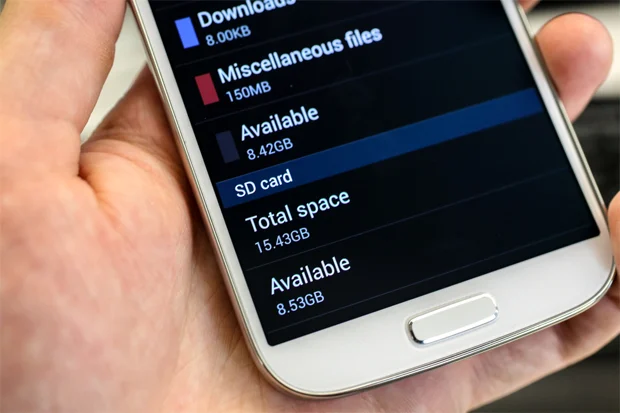
Open Settings > Storage And note how many gigabytes are free. Without this number, you won't know if the cleanup was worthwhile—and you'll end up believing any promise of results. The same screen shows consumption by category, which defines the order of the following steps.
Minutes 2 to 6: the media of conversations
On WhatsApp, go to Settings > Storage and data > Manage storage. Use the two pre-made lists: files larger than 5 MB and items forwarded many times. Select and delete. The conversations remain intact; only the file is removed.
Before leaving this screen, turn off automatic video downloads on mobile data and Wi-Fi. This is the only step that will prevent the problem from recurring.
Minutes 7 to 11: photos and videos
Check if the backup of Google Photos It's up to date. When you're finished, use the free-up space option: it only removes images from your phone that have already been confirmed backed up to your account. Take the opportunity to delete old screenshots and long videos that have already been sent to the intended recipients.
If the free account quota is full, the backup will silently stop. It's worth checking this detail before trusting the synchronization.
Minutes 12 to 15: applications
In Settings > Applications, Sort by size. Uninstall anything you haven't opened in six months—games usually top the list by a wide margin. For pre-installed apps that don't have an uninstall button, use "disable": this removes accumulated updates and takes the app out of the background.
In the three or four largest ones that you actually use, go into Storage and caching and tap on clear cache. Be careful not to confuse it with "clear data," which resets the app and causes you to lose your login and settings.
Minutes 16 to 18: downloads and trash cans
Open your file manager, go to Downloads, and sort by size. Old files, saved images, and installers can be deleted; important documents should be moved to the cloud first. Then, empty the trash bins in both the gallery and the file manager, which retain deleted files for 30 or 60 days and continue to occupy space during that time.
Minutes 19 and 20: adjustments that prevent the next cleaning spree.
- Record in 1080p instead of 4K when the video is for viewing on your phone or sending in a chat. Data consumption drops to less than a third.
- Review the synced accounts and remove any you no longer use.
- Check if there are any pending system updates.
- Compare the available space with the number you noted in the first minute.
And what if you still want an app?
There is one instance where an external tool adds value: finding duplicate files and folders left behind by uninstalled applications, things that the native panel doesn't show. Files by Google resolves the common case without cost; the SD Maid 2/SE It's more thorough and shows the list before deleting. CCleaner It is AVG Cleaner These are well-known alternatives, but the free version includes ads.
Use the file management section and ignore the speed-up button. On current Android devices, forcibly closing background processes doesn't improve performance: the system intentionally keeps recent apps loaded and releases them automatically when it needs memory. Forcing them to close only causes a full recharge afterward, with extra battery consumption and delays in notifications.
Preventive maintenance is worth more than deep cleaning.
Cleaning solves the problem today; adjusting prevents it next month. Five settings that permanently change how your device behaves:
- Turn off automatic media downloads. In messaging apps, at least for groups and at least on mobile networks. It's the only measure that attacks the root cause, not just the symptom.
- Turn on automatic photo backup. And use the gallery app's own space-freezing function. This turns manual cleaning into an automatic routine.
- Enable the removal of unused applications., Where it exists. On the iPhone, it downloads the program and keeps the documents; on Android, hibernation does something equivalent.
- Reduce the default video recording quality. Switching from 4K to 1080p reduces storage space consumption for several reasons, and on a mobile phone screen the difference is small.
- Configure the gallery's trash can cleanup. and check the timeframe — generally 30 days, or 60 with active backup.
Once implemented, these five adjustments reduce the need for deep cleaning to once a quarter, instead of every month.
Where the routine changes on the iPhone
The script is the same in spirit, but the tools have different names and behaviors:
- There is no "clear cache" option for each application. The system manages this automatically. The equivalent is Remove App, This method deletes the program but keeps documents and data — reinstalling restores everything. It's the most efficient way to free up space without losing anything.
- Delete App It's the definitive way: it takes the program and the data together.
- The storage screen makes recommendations. Specific tasks, such as reviewing large videos and old conversations, are worth following.
- The gallery's trash can It is stored for about 30 days and needs to be emptied for the space to actually return to its normal state.
- Messages It has a setting to automatically delete old conversations and large attachments, which is usually where the file size accumulates.
- Download unused apps It automates the first operation when space is tight.
If after all that there's still not enough space
There comes a point when cleaning has become tiresome. Before concluding that it's time to replace the appliance, it's worth checking three things in this order:
- How much is the system using?. On older devices, even those with years of updates, this percentage increases. A full backup followed by a factory reset recovers several gigabytes—and it's the only operation that does so.
- If there is duplication between the cloud and the device. It's common to have the same photos in the gallery and in a second storage application, taking up double the space without anyone noticing.
- Does the device accept cards?. For those who store a lot of media, it's the cheapest expansion available — used as portable storage, not as adopted internal memory.
If you've already done all three tests and the storage space is still insufficient for normal use, the honest answer is that the device has become too small for what you do with it. No app can change that.
Frequently Asked Questions
How often should I repeat this routine?
Every two or three months is sufficient for most people. Those who participate in many active groups or record video frequently may need shorter intervals. If you've applied the final adjustments—auto-download off and 1080p recording—the interval tends to increase significantly.
Do I need to make a backup before I start?
From WhatsApp, yes, especially if you intend to change the app's settings. For the rest of your routine, the risk is low because all the steps involve files you recognize. Even so, having up-to-date photo backups is a good practice regardless of whether you're cleaning.
Does this routine work on iPhone?
The logic is the same, just with different names. The iPhone has a storage screen that suggests actions, WhatsApp's media management is identical, and the cloud serves the same purpose. The difference is that the system doesn't allow the installation of cleaning apps with broad file access, making the native approach even more central.
Is it better to clear the cache of all applications at once?
It doesn't make a significant difference and uses up data. Cache is rebuilt with use, so clearing apps you hardly ever open yields little and only forces new downloads later. Focus on the three or four largest ones.
What to do if, after all this, there's still not enough space?
Then the conversation changes: either the device has too little internal memory for your needs, or you store more media than it can hold. The solutions are a memory card, in phones that accept them, external storage via cable, more cloud space, or, as a last resort, a device with greater capacity.
Conclusion
Twenty minutes, seven steps, no installation required. The routine works because it tackles storage space in the right order: chat media, gallery, apps, downloads, and trash. Note the number at the beginning and end, and you'll have an exact measure of what you've gained—something no animated app meter can offer.
Read too
- System cleanup on your phone: what you can delete and what you can't.
- Phone cleaning: what accelerator apps really do
- Clearing phone memory: what really takes up space?
- Clearing memory and speeding up your phone: what really works and what's a myth?
- More battery on your cell phone: how to find out what's draining your power.
- Clearing your phone's memory: files you shouldn't delete