Clearing your phone's memory: what Android already does automatically.
 Put Rodrigo Oliveira
Before looking for a application at no cost to clear the phone's memory, It's worth knowing one thing: Android already does a good part of this cleanup on its own, without you asking and without installing anything. Understanding what the system runs in the background avoids installing an app to repeat work that's already done — and helps identify what's really left for you to fix manually.
This guide shows the system's automatic routines, what they cover, where their limits lie, and in what situations an external application remains useful.
What Android cleans up on its own
Cache under pressure. When storage becomes limited, the system automatically clears application caches, starting with the ones you use least. That's why many people click "clear cache" and see little result: a good portion had already been discarded.
Application hibernation. Since Android 11, apps that remain unused for months have their permissions revoked and their cache removed. In more recent versions, the device can also automatically archive rarely used apps, keeping the data and freeing up most of the installer's space.
RAM memory management. This is the most poorly explained point on the internet. Android intentionally keeps several applications loaded in RAM because idle memory is useless and an already loaded app opens instantly. When there is not enough memory for a new task, the system automatically terminates the oldest process in milliseconds. You don't need to do that.
Where automation doesn't reach
The system is intentionally conservative: it never deletes files that might belong to you. Therefore, everything that follows remains a human decision.
- Photos and videos. Neither the 2GB video nor the accidentally taken photo are touched. They only disappear if you delete them or move them to the cloud.
- Media received in conversations. Videos and audio files forwarded in groups are stored indefinitely.
- Downloads. The mess keeps growing forever. Nobody can clean it up for you.
- Apps that you installed but don't use. Hibernation reduces the impact, but it doesn't uninstall.
- Duplicate files. The same image saved three times counts three times.
The native path, step by step.
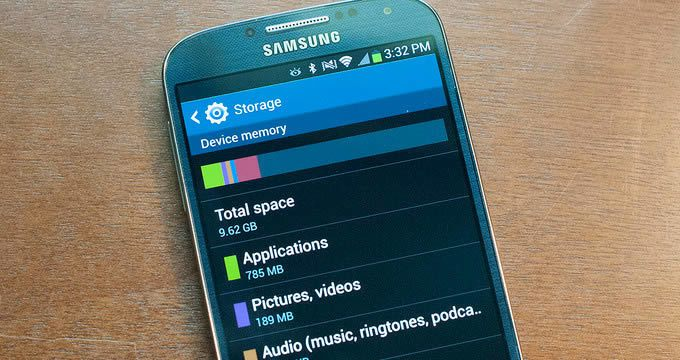
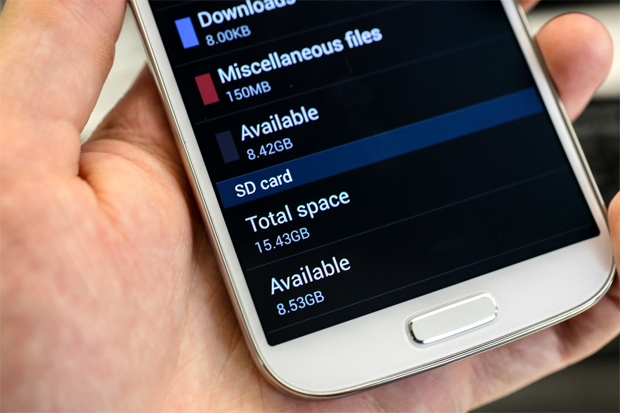
Open Settings > Storage. The screen shows how much space each category occupies and includes a "free up space" button, which suggests large and old items. On Samsung devices, the equivalent path is... Device care > Storage; On Motorola and Xiaomi devices, the menu appears with similar names. This panel is free, comes pre-installed, and doesn't ask for any permissions.
In addition, the Google Photos It has a space-freezing function, which removes from the device only the images that have already been copied to the account. It's the safest way to recover several gigabytes, because nothing is deleted before a confirmed copy exists.
When does installing a cleaning app still make sense?
There are two legitimate cases. The first is to find duplicate files and orphaned folders left behind by uninstalled apps, a task that the system panel does not perform. The second is navigate through folders with freedom on devices whose native file manager is limited.
For the first case, the Files by Google It works well and at no cost. For a more detailed scan of application remnants, the SD Maid 2/SE It shows exactly what you intend to remove before acting. CCleaner It is AVG Cleaner These are well-known alternatives, but the free version includes ads.
Outside of those two cases, the gain is small. And there's a hidden cost: cleaning apps that run in the background to "monitor" the device consume battery and memory just to claim they're saving battery and memory. If you install one, prefer to use it occasionally and keep notifications turned off.
How Android decides what it can delete on its own.
It's important to understand the mechanism, because it explains why automation only goes so far. The system classifies each file into one of three categories:
- Disposable without consequence. — Cache, temporary file, installation remnant. The system deletes it automatically when space is limited, and the application doesn't even notice.
- Disposable with confirmed copy. — photos and videos that have already been uploaded to the cloud. Here, the automation only acts if the backup is complete, and it checks this status beforehand.
- Irreplaceable — which exists only on the device. The system, by definition, doesn't touch it, and this is where the decision is yours again.
This answers the most common question: no, Android will not delete your photos without warning. It only removes a local copy of what is stored elsewhere, and only when storage space is running low.
Where does automation stop, and why?
There are four boundaries that the system does not cross, and all for good reason:
- Media without backup. If the cloud backup is not confirmed, deleting it from the device will result in permanent loss. The system does not assume this risk for you.
- Duplicate. Two similar photos can be two separate photos, or the same photo can be saved twice. The person who took the photo decides.
- Content within a third-party application. The system doesn't know which of your downloaded episodes you still intend to watch.
- A file that you downloaded on purpose. Payment slip, document, PDF. No one can assume it has become dispensable.
In other words, what remains for humans is precisely the part that requires judgment—and it is also the part that yields gigabytes, not megabytes.
What has changed in recent versions of the system?
Automation has become more aggressive across versions, which explains why a cleaning app made more sense a few years ago than it does today:
- Restricted access to files. Common apps no longer see the entire storage and now only access their own area and what you specifically authorize. A "cleaner" that needs to sweep everything has to request special permission — and that's exactly where you should be suspicious.
- Automatic hibernation. An app you haven't opened in months has its permissions revoked, background execution stopped, and cache cleared, without you doing anything.
- Trash can with expiration date in the gallery, which eliminates the need for manual cleanup of what has been deleted.
- Native storage manager, which suggests what to remove and shows what already has a copy in the cloud.
Taken together, these changes cover almost everything the "cleaner" category was designed to do — with one major advantage: the system knows the difference between disposable files and your own files.
The limits of automation
- She doesn't manage her media. No system decides which of your thousand videos matter.
- She doesn't cancel her subscription. a service that downloads content automatically.
- It doesn't create physical space. On devices with 32 or 64 GB of storage, there comes a point where the math doesn't add up.
- She doesn't act preventively. Automatic cleaning responds to space pressure; it does not prevent the space from filling up.
Frequently Asked Questions
If Android cleans itself, why is my phone always full?
Because the system only discards what is disposable: cache and data from abandoned applications. It never deletes files that could be yours. Photos, videos, audio recordings of conversations, and downloads remain there forever, and it is precisely these categories that occupy most of the space on most devices.
What is application hibernation?
It's an Android feature that identifies apps that haven't been used for several months, revokes their permissions, and clears their cache. In more recent versions, the system can also archive the rarely used app: the installer is removed, but its data remains, so you can recover everything when you open it again. You can view and undo this in Settings, on the app's screen.
Do I need to restart my phone to clear the memory?
Restarting clears RAM and terminates stuck processes, so it can help when the device starts behaving strangely. However, it's not a mandatory routine: Android manages RAM continuously. Restarting once a week is sufficient for most people and doesn't replace cleaning the storage.
Could a cleaning app accidentally delete something important?
This is especially true for those that offer "deep cleaning" of folders without explaining what they are removing. Prefer tools that show the list before deleting and avoid granting access to all files to applications from unknown sources. If you are unsure about an item, leave it where it is.
Conclusion
Modern Android automatically handles cache, RAM, and abandoned apps. What's left for you is what the system isn't morally permitted to delete: your photos, videos, chat media, and downloads. Start there, use the native storage screen, and reserve the external app for duplicates and leftover apps. It's less work, costs nothing, and doesn't require giving access to all your files to an unknown developer.
Read too
- Clearing memory and speeding up your phone: what really works and what's a myth?
- Clearing your phone's memory: files you shouldn't delete
- Clearing phone memory: what really takes up space?
- Apps to clean memory: 5 options and what each one does.
- Cleaning apps: which ones disappeared from the Play Store and what to use now.