Android cleanup: uninstall or disable pre-installed apps
 Put Rodrigo Oliveira
A large part of system cleaning on Android It's not about deleting files: it's about deciding what to do with the apps that came pre-installed on the device. Every manufacturer ships a phone with dozens of its own and partner apps—so-called bloatware—and many of them don't have an uninstall button. The right question isn't "how to delete," but rather... when to uninstall and when to disable.
This guide explains the practical difference between the two actions, how much space each one frees up, which apps you shouldn't touch, and why the seemingly easy solution, the cleaning app with a "remove all" button, is the least recommended.
Uninstall: the app is removed, and data is deleted.
Uninstalling is the complete option. The application disappears from the list, the installer is removed, and its data folder is also taken down. This frees up the most space and is the path to everything you installed yourself and no longer use. Games are the hidden champions: a single title can exceed 5 GB, including the app and any content packs downloaded afterward.
To find the candidates, go to Settings > Applications and sort by size. Then, look at the date of last use — many interfaces show this information. A large app that you haven't opened in six months is a natural candidate.

Deactivate: the middle ground for what came from the factory.
Pre-installed apps usually only have the options "disable" and "uninstall updates." Disabling doesn't delete the original version saved in the system partition, but it removes all updates downloaded since the factory, clears the app's data, and removes it from the app drawer. It stops running, stops sending notifications, and stops consuming memory and battery.
The space saved is less than uninstalling, but it's not negligible: a factory app that has been updated several times can have accumulated hundreds of megabytes of updates. And the main gain is elsewhere — fewer processes running in the background means less battery consumption and less contention for memory.
What can be disabled without breaking the phone?
- You can disable it: Business partner apps, promotional games, the manufacturer's browser that you don't use, duplicate assistant, alternative brand app store, home screen news app.
- Think before you act: System keyboard — disable only after installing and choosing another one; camera app, if it's the default for the physical button; SMS messaging app, which still receives verification codes.
- Do not touch: Google Play services, package manager, system services, display components, phone, and contacts. Disabling these items generates constant errors and, in some cases, requires a factory reset.
The rule of thumb: if the item name starts with “com.android” or “Services”, leave it as is. If in doubt, disable one at a time and use the device for a day before messing with the next one. Everything that was disabled can be re-enabled on the same screen.
What Android already does on its own
Since Android 11, apps that go months without being opened enter hibernation: they lose their granted permissions and have their cache cleared. In more recent versions, the system can also automatically archive the rarely used app, freeing up most of the installer space and keeping its data for when you use it again. In other words, some of the work is already being done without you even asking.
Why the cleaning app isn't the best tool here.
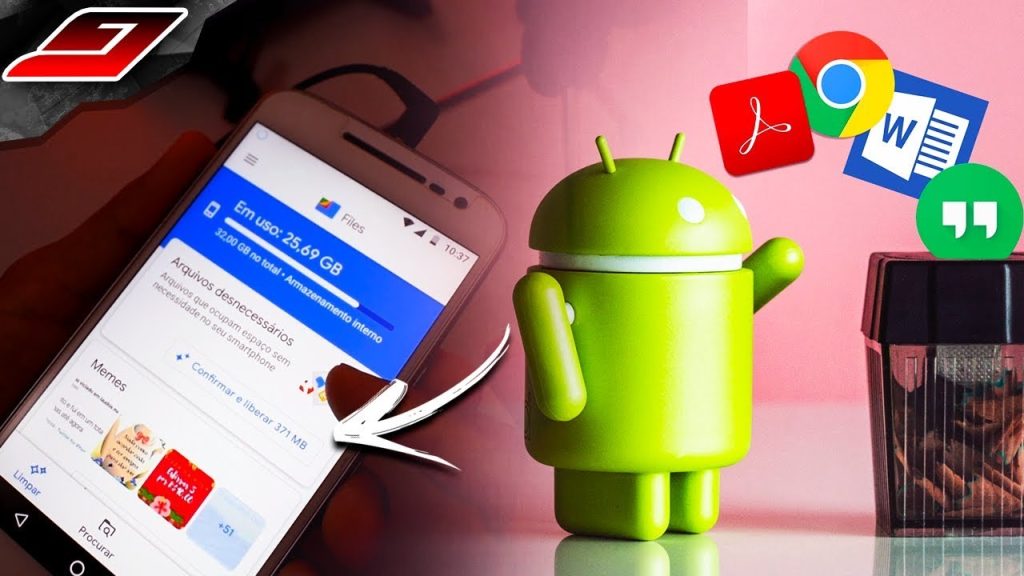
Applications like Files by Google, the CCleaner and the SD Maid 2/SE They are useful for finding large files, duplicates, and remnants of already removed apps. None of them, however, can uninstall factory-installed apps—that depends on system permissions that Android doesn't grant to regular apps. What they do is open the same settings screen you would open manually.
It's also worth ignoring the "speed up" or "free up RAM" button that almost all apps offer. Forcibly closing background apps causes the system to reload them afterward, draining battery and effectively slowing down the device. And avoid any app in this category that asks for this. accessibility permissionThis feature allows you to read the screen and simulate touches, and it has no function whatsoever in cleaning up storage space.
Why doesn't the factory app perform like the others?
The difference is where it's stored. An app you installed is located in the user data area, and deleting that area is simple. An app that came with the device is located in... system partition, This protection, which is read-only in normal use, is precisely what ensures the phone will work again after a factory reset.
Practical consequence: Disabling it frees up very little space. The original package remains where it is; what's removed are the updates it received afterward, and those can amount to several megabytes. If your expectation was to gain gigabytes by disabling factory-installed applications, it won't be fulfilled.
The real gain lies elsewhere, and it's greater than it seems: the deactivated app. It stops running, stops syncing, stops consuming battery and data in the background, and disappears from the drawer.. For a device with limited memory, this weighs more than disk space.
The list of what not to disable
Some components seem dispensable but support essential functions. The rule is simple: If you don't recognize the name, don't disable it. Cases that usually cause breakage:
- Services of the operating system itself, with a technical name and no icon. Many are based on notification, permission, and login.
- Accessibility and keyboard components. Disabling the only installed keyboard leaves the device unable to type.
- Download and storage manager. Without them, applications stop saving files.
- Location and account synchronization services, which depend on mapping, backup, and recovery of the lost device.
- Dialer, messages and contacts, Even if you use another app for this — on many devices the default setting continues to be called underneath.
If something breaks, the good news is that disabling it is reversible: simply reactivate it on the same screen. Therefore, it's worth disabling it. one at a time and use your cell phone normally for a day before the next one.
Frequently Asked Questions
Can disabling a factory-installed app cause problems with your phone?
If it's a content app—a promotional game, a branded browser, an alternative store—then no. The risk arises when disabling system components that other applications depend on: the device will start displaying error messages and features will stop working. That's why it's recommended to disable one item at a time and use the phone for a day before the next one. Everything is reversible on the same settings screen.
Why do some apps not have an uninstall button?
Because they are stored in the system partition, written during manufacturing and protected against alteration. The user can remove the updates and disable the app, but the original version remains occupying the space that was already allocated when the phone was taken out of the box. Truly removing it would require administrator access to the system, which voids the warranty and creates security vulnerabilities.
How much space do I gain by disabling factory apps?
The gain comes from accumulated updates and data that the app has saved, and varies greatly from device to device. On phones with many partner apps, it's common to recover a few hundred megabytes. The biggest benefit, however, is not the space: it's reducing the number of services running in the background, which translates to less battery consumption and less contention for memory.
Is there an app that uninstalls bloatware without root access?
Not for a regular app downloaded from the store. Android doesn't grant third-party apps the necessary permission to remove system packages. Tools that promise this either just open the settings screen you would open yourself, or require root access — and gaining administrator access on the device usually voids the warranty, blocks security updates, and prevents banking apps from working.
Does disabling apps make your phone faster?
It can help on devices with limited memory because fewer services are competing for resources at the same time. Don't expect a transformation: an entry-level phone remains an entry-level phone. The noticeable gain is usually fewer notifications, less synchronization, and a battery that lasts a little longer throughout the day.
Conclusion
Uninstall anything you've installed but don't use; disable pre-installed apps that are just a nuisance; don't touch system services. This order frees up space, reduces background resource consumption, and doesn't depend on any extra apps. Save the cleaner for what it does best—finding large and duplicate files—and do the rest through the Android app screen.
Read too
- Cleaning Android: When the SD card helps and when it hinders
- System cleanup: why 64 GB is never 64 GB free.
- System cleanup: how to remove photos and videos from your phone without losing anything
- Memory cleaning: what to do before buying a new cell phone.
- Memory cleanup: how to read the Android storage screen