Phone cleaning: what accelerator apps really do
 Put Rodrigo Oliveira
Search for Free app for cleaning your cell phone. In the store, you'll find dozens of options with the same look: a large meter, a "speed up" button, and a promise of performance. Before choosing, it's worth understanding what these programs do beneath the animation—because the gap between what they show and what they actually do is the most poorly explained aspect of the category.
This guide breaks down the four functions that actually exist in these apps, points out which ones are worthwhile, and explains why the most eye-catching button is precisely the one that delivers the least.
Function 1: Clear application cache
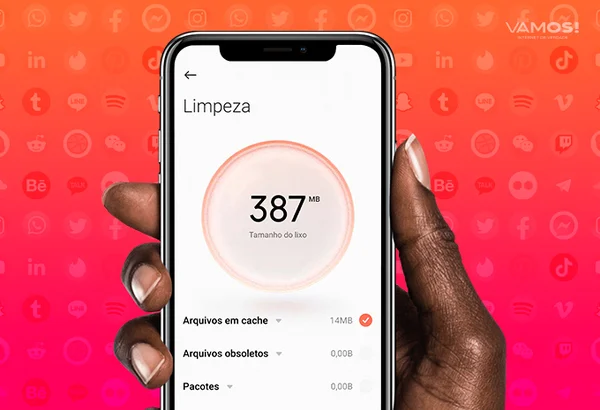
This is the most common and honest operation. The app goes through the list of installed programs and asks the system to discard the temporary files of each one. This frees up real space without deleting logins or settings. The same result is available in... Settings > Apps > Storage and cache, app by app; the cleaner only automates the repetition.
It's worth noting that Android automatically clears the cache when storage is full. Therefore, those with plenty of space usually see modest numbers in this scan.
Function 2: Find large, old, and duplicate files.
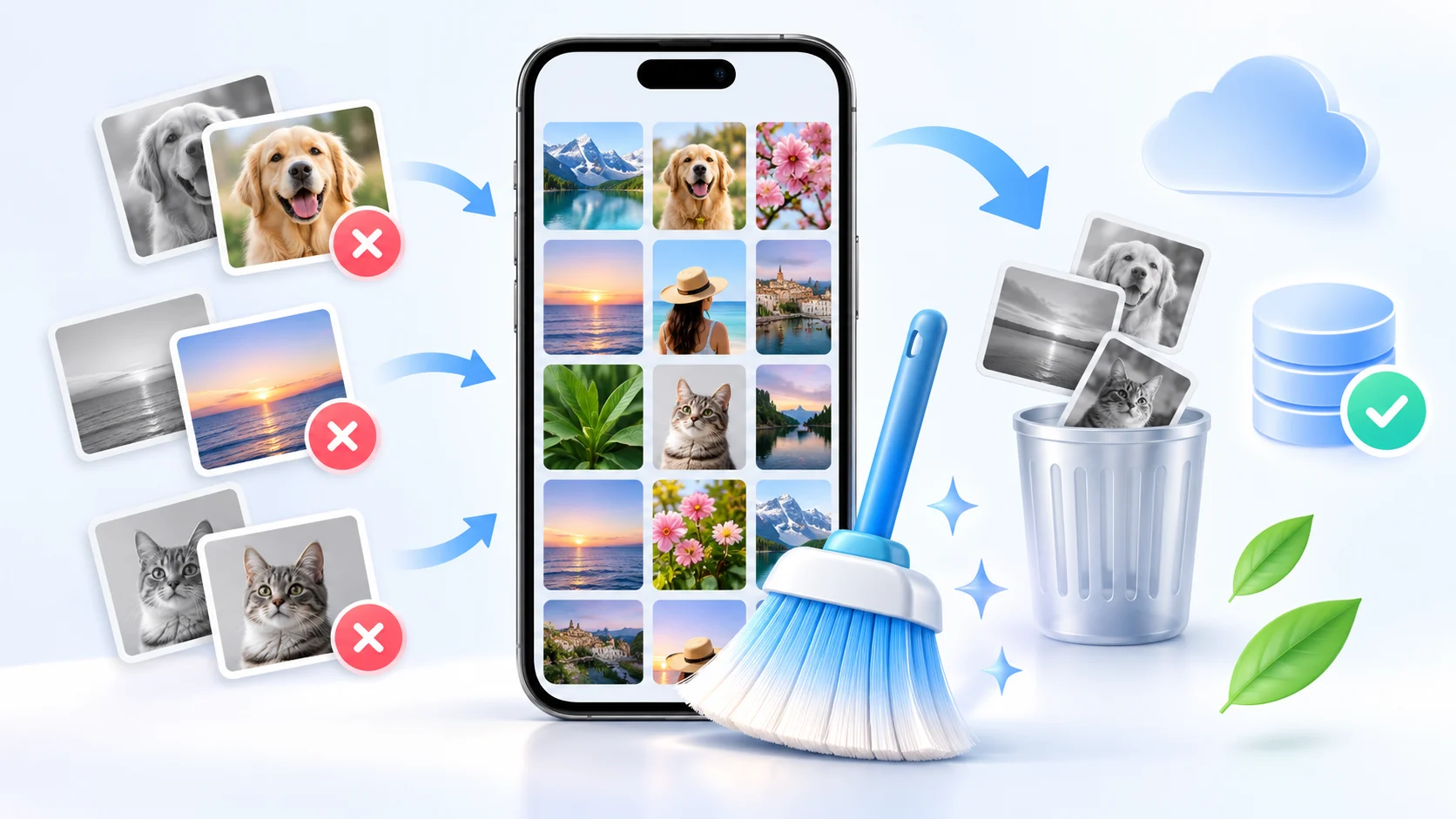
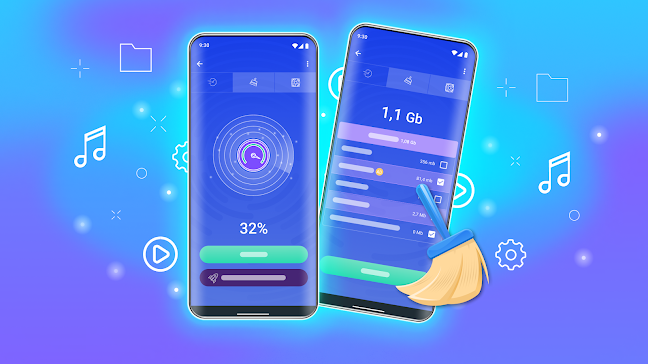
This is the most useful function in the category, and the one that justifies installing an app. Scanning your entire storage looking for the same photo saved four times, forgotten videos, and old installers is a tedious task to do manually. Files by Google It does this at no cost and with little advertising effort. The SD Maid 2/SE It goes deeper, including folders left by previously uninstalled applications, and shows the list before removing anything.
Function 3: List and uninstall applications
The cleaner organizes applications by size and last used date, and offers a button to uninstall them sequentially. It's convenient. The uninstallation itself is still done by the system, which asks for your confirmation for each item — no regular application has permission to remove programs on its own, nor to delete those that came pre-installed.
Function 4: The Accelerate Button — and Why It Doesn't Deliver
Here's the problem. The "boost," "turbo," or "free up RAM" button does only one thing: it requests the termination of background processes. The meter drops, the animation celebrates, and the practical result is negative.
In modern Android devices, RAM is managed by the system itself. Keeping recent apps loaded is intentional: idle memory doesn't speed things up, and already loaded apps reopen instantly. When the device needs space for a new task, it automatically closes the oldest process in milliseconds. By forcing everything to close, you force the system to reload each app from scratch the next time you open it—which consumes processing power, drains battery, and slows down performance, not speeds it up.
There's also a little-remembered side effect: forcibly closed apps lose notification connectivity. Many people who complain about messages arriving late have an "optimizer" closing the messenger every few minutes.
What to look for before installing
- Permissions. Request for access to all files It's common in this category, but it should come with an explanation. Request for accessibility service There's no justification for it: it allows you to read the screen and simulate touches, which no amount of storage cleanup requires.
- Number of ads. If the app plays an advertising video before each scan, the product is the advertisement and the cleaning is just a pretext.
- Who published it?. Check the developer and look for other apps from them in the store.
- Promise of a percentage. Performance gains advertised as a fixed number are neither measurable nor verifiable. It's marketing.
- Ongoing execution. An app that runs in the background monitoring the device consumes the same resources it claims to save.
Where does the revenue for these apps come from?
Understanding the business model explains every interface decision that seems strange. A free cleaner sustains itself in four ways, and almost always in more than one at the same time:
- Full-screen ad between steps. That's why the "analysis" has multiple screens, and each tap opens an advertising break. The delay isn't technical—it's ad inventory.
- Advertisement outside the app., This is triggered by a notification stating "your phone has 87% of memory occupied." The notification exists to bring you back and show you another ad.
- Signature which promises automatic cleaning and ad removal.
- Usage data. Some collect lists of installed applications and usage patterns, which is information with market value.
None of this is illegal, and not every app in this category does all four things. But the math is simple: The more a product relies on advertising, the more the interface is designed to generate taps — not to solve your problem in the fewest number of steps. A practical tip: count how many taps separate opening the app from actually freeing up space.
The test that separates theater tool
You can evaluate any cleaner in five minutes, regardless of what it claims:
- Note the free space. First, on the system storage screen.
- Rotate the cleaning and note how much the app says it has released.
- Return to the system screen. and compare the actual free space.
- Repeat the cleaning process immediately. If he finds another mountain of "junk" soon after, the number is inflated — he's counting temporary files that the system recreates in seconds.
- Restart your phone and observe.If the feeling of speed appears the same without running the app, it was the restart, not the cleaning.
In most cases, the space actually freed up is a fraction of what was advertised — and is close to what the system's native tool frees up on its own, without advertising and without broad permissions.
What to do instead of installing
- Use the system's storage manager., which shows the breakdown by category and suggests what to remove — including what already has a copy in the cloud.
- Clear media from conversations one by one., Starting with the weight groups, that's where most of the weight is concentrated on most machines.
- Review the downloads within the video and music apps.
- Uninstall anything you haven't opened in three months. It frees up space and reduces background execution all at once.
- Turn on automatic photo backup. and then use the option to free up space within the gallery app itself.
- If you install a cleaner, uninstall it after using it. Keeping one running in the background drains battery and notifications for a task that is only needed once a day.
Frequently Asked Questions
If the speed-up button isn't working, why does the phone seem faster afterward?
Because, in the next instant, less is happening: the device has just finished all processes and hasn't recharged anything yet. The feeling doesn't last long. As soon as you reopen your usual apps, the system redoes the work, and the battery consumption from this recharge is greater than it would have been if you hadn't touched anything.
Are there any cleaning apps that are worth paying for?
The paid version usually removes ads and enables scheduled scanning. If you frequently use the tool to manage files, it might be worthwhile. If you use it twice a year, the free version is sufficient. In neither case does the subscription unlock a performance gain that the free version hides.
Why do these apps ask for so many permissions?
Some access is necessary: to list and delete files, you need to read the storage. Some is not. Access to the contact list, location, and accessibility services is unrelated to cleaning and is usually used for targeted advertising or functions that the app doesn't explain. Reject what doesn't make sense and see if it continues to work.
My phone became slow after installing a cleaner. Is that possible?
It's quite possible. An app that runs continuously, scans storage at short intervals, and displays notifications consumes memory, processor power, and battery. Uninstalling it is a quick test: use the device for a few days without it and compare.
How can you tell if a cleaning app is trustworthy?
Look at the developer, the permission list, the number of ads, and the description text. Promises of percentage-based results, alarmist language about the "critical state" of the device, and requests for accessibility are the three most reliable signs that it's better to look for another one.
Conclusion
Of the four functions, three are legitimate shortcuts for tasks you would do manually, and the most advertised one is the one that doesn't work. Choose an application based on its ability to find large and duplicate files, use it occasionally, and ignore the memory meter. For speed, what really helps is keeping the system updated, having free storage space, and reducing what is constantly syncing.
Read too
- System cleanup on your phone: what you can delete and what you can't.
- Cleaning your phone: a 20-minute routine that doesn't require an app.
- Clearing phone memory: what really takes up space?
- Free Apps for Weighing Animals: What They Really Do
- Recovering Lost Photos on Your Cell Phone: The Order That Actually Works
- Clearing memory and speeding up your phone: what really works and what's a myth?