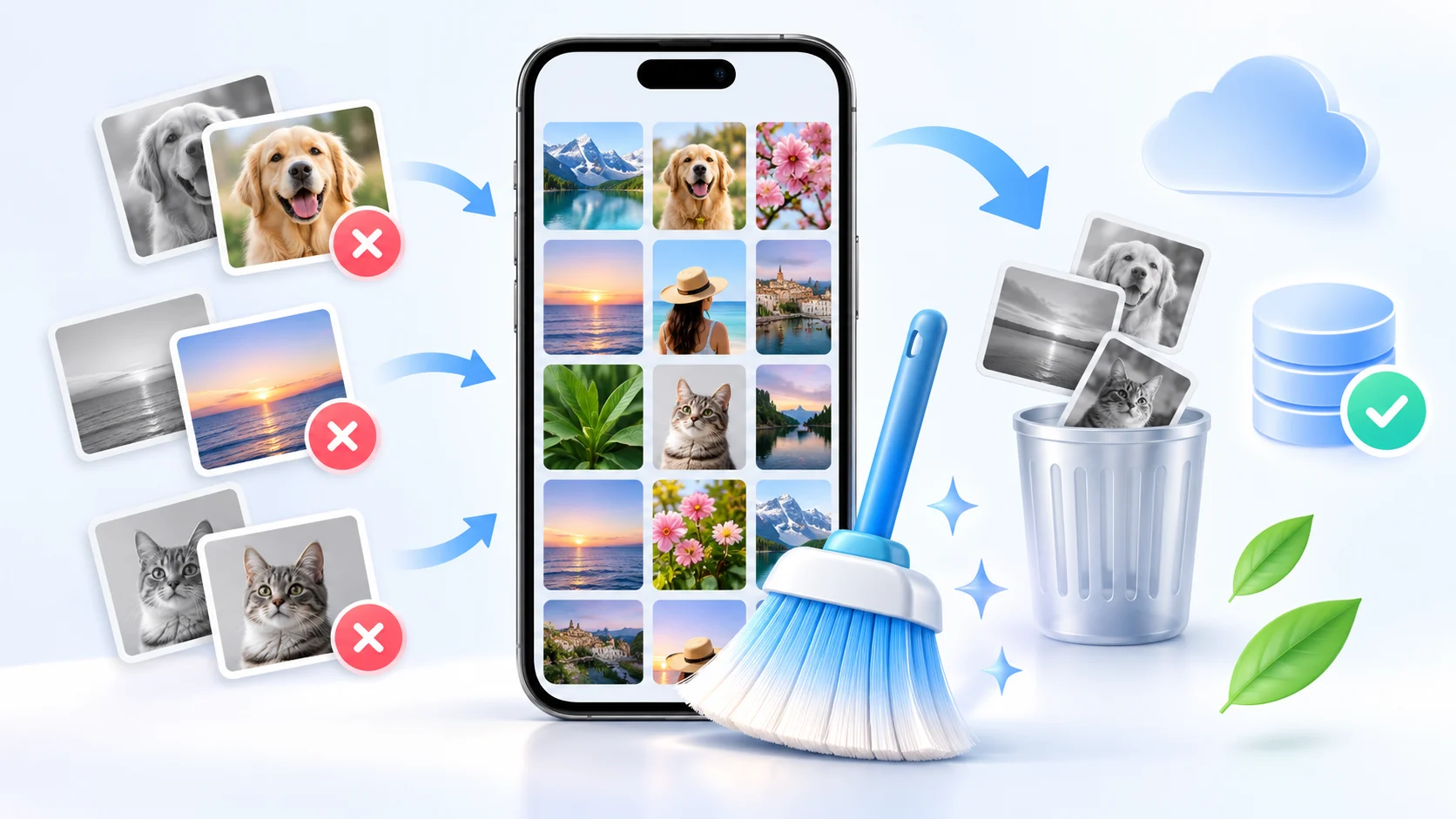
Deleted Photos from Your Phone: How to Recover Them and How to Never Lose Them Again
 Put Rodrigo Oliveira
This text has two parts. The first is what to do now if you've just accidentally deleted a photo. The second, and more important part, is how to configure your phone so that this is no longer a problem.
Let's start with the urgency.
Part 1: What to do now
Step 1 — Stop using the device.
Each new photo, each downloaded video, and each app update can take up space where the old data was. Turn on airplane mode, if possible, and don't install anything—not even a recovery app, which also takes up space.
Step 2 — gallery trash can
That's where most cases get resolved. Google Photos, Items with backups remain. 60 days in the trash and items that were never synced remain. 30 days. Manufacturer galleries maintain their own recycle bin, typically with a 30-day retention period, and the iPhone Photos app has a "Recently Deleted" album, also with a 30-day retention period. Files by Google It has its own trash can.
Step 3 — Backup and conversations
Open Google Photos, Google Drive, or iCloud on your computer and search by date, also checking the trash folders of these services. Then look in WhatsApp and Telegram conversations and in email: sent media remains in the original history.
Step 4 — Memory card
If the photo was on an SD card, remove it immediately and use a card reader on your computer. SD cards are usually not encrypted, and this is the scenario where recovery can still work fairly well.
Step 5 — application, lastly
In the internal storage of modern cell phones, three mechanisms limit the result: system encryption, the command TRIM — which makes the flash memory automatically clear freed blocks — and the storage scope, which since Android 10 prevents applications from scanning memory without root access. Scanning without root access usually only returns data. miniatures in cache.
The consolidated apps on the Play Store are... DiskDigger, with a rating of around 3.2 and over 500,000 reviews, and the Dumpster, with a rating close to 4.1 — this one functions as a recycle bin and only protects what is deleted after installation. Names like PhotoRec, Recuva, and Dr.Fone are computer programs, not mobile applications.
Part 2: How to Never Lose Again
1. Enable backup and confirm that it is running.
Turning on backup isn't enough: you need to check that it's actually syncing. Open the Photos app and check the account status. If it says "waiting for connection" or "backup paused," something is blocking the process.
2. Keep an eye on cloud space.
This is the number one reason why backups stop silently. When the account fills up, new photos stop uploading and the warning goes unnoticed among the notifications. It's worth reviewing your storage space every few months, deleting old videos that are already stored elsewhere, or purchasing more storage.
3. Include the folders that were left out.
Backups typically include the camera folder by default. Photos received via WhatsApp, screenshots, images saved from your browser, and folders from other camera apps may be excluded. Review the list of included folders.
4. Keep a second copy.
A single cloud service is a single point of failure: a locked account, a lost password, or accidental deletion can take everything down. Regular backups to a computer or external hard drive are inexpensive and solve the problem.
5. Use the wireless network and keep the charger nearby.
Backup of photos and videos It consumes data and battery power. Configured to run only wirelessly and while charging, it happens without you noticing.
6. Check before formatting or changing devices.
Before resetting your phone or switching to another one, access your cloud account from a computer and confirm that your recent photos are there. Once formatted, there's no going back.
Warning signs when installing apps
- A promise to recover everything, or to bring back what has already been permanently deleted.
- Requests for permissions unrelated to the role: contacts, messages, microphone, accessibility.
- A charge that only appears when saving the found file.
- Installation file offered outside of the official store.
- The last update was very old and there are few reviews.
Synchronizing is not the same as backing up.
This confusion is the silent cause of much loss, and it's worth understanding the difference calmly. Synchronization keeps two places identical: what happens on one side happens on the other, in seconds. Backup is a copy of the state at a given moment, stored separately, which does not change when the original changes.
In other words, synchronization propagates both correct and incorrect data with the same efficiency. If you accidentally select two hundred photos and confirm their deletion, they disappear from both sides. If an application with broad permissions decides to "clean" a folder, the damage is uploaded to the cloud before you even realize it. The service's trash bin exists precisely to mitigate this type of accident, but it has a time limit.
One practical consequence that almost no one realizes: connecting a second service that mirrors the first. no It's like having two copies. They are two mirror images of the same picture. A true copy is the one that doesn't receive the order to be deleted.
The account is the single point of failure.
With the entire collection in the cloud, the risk shifts from the cell phone to access to the account. Losing the account means losing everything at once, without warning and with no one to complain to on the other side. What usually goes wrong:
- Old phone number Registered as a recovery method. You change your SIM card, the operator transfers the number to another person, and the path back disappears.
- A secondary email address you haven't opened in years., sometimes already deactivated by the provider due to inactivity.
- Recovery codes were never saved. They are generated once, are useful when nothing else works, and most people close the screen without writing them down.
- Work account as a personal safe. If the account belongs to a company or school, access can be terminated by someone else. Family photos shouldn't be stored there.
- Lack of trustworthy contact. Larger systems allow you to designate someone who can help regain access or inherit the collection. Setup takes minutes and solves a scenario no one wants to imagine.
Write down now, on paper or in your password manager: what is the email address of the main account, what phone number is registered, and where are the codes located. It's the cheapest maintenance you can do.
A cold copy: one that is not connected to anything.
The idea is old and remains unbeatable: three copies of what matters, on at least two types of media, with one of them kept outside the home. For a mobile phone collection, this becomes quite simple — the phone, the cloud, and an external hard drive that stays switched off in a drawer.
What makes a disconnected hard drive so valuable is precisely that it's disconnected. Mass deletion, malicious applications, hacked accounts: none of that can affect a device that isn't connected. Once a year, turn it on, copy everything that's been uploaded since the last time, check some images by actually opening them, and turn it off again. Write the date on a label. Twenty minutes a year protects a decade's worth of archives.
How these services make money — and what that means for you.
Let's be direct: cloud storage isn't charity. The model is always the same — a generous free quota to get you started and build the habit, and a subscription when your collection grows. It's a good deal for both sides, but there are consequences you need to anticipate.
The first is that the quota will run out, and the day it runs out is the day the backup stops running silently. The second is the "space saving" option, which reduces the resolution of uploaded files: acceptable for everyday use, bad for those who intend to print. The third is that stopping payments doesn't immediately delete your photos, but it blocks the sending of new ones and, over time, may limit access. If the plan depends on a subscription, treat the monthly fee like the electricity bill for your collection—and keep the cold copy as a plan B for the month when the card fails.
Organize today so you know what you need tomorrow.
- Mark the few irreplaceable photos as favorites. It's this short list that deserves an extra copy and a second look.
- Create albums by year or by event, even if only for milestones. An album is the only way to realize that something was missing.
- Use the account's own export tool to download your entire collection from time to time. This ensures you're not locked into a single service.
- Check the item count before and after any migration. The number is the only objective proof that nothing was left behind.
- Delete calmly. The rush to free up space is the origin of most accidental deletions.
Questions about protecting the collection
Is it worth having two different cloud services?
It works, as long as the second recipient receives a copy and not a mirror image. If it only reflects the first, you've doubled the cost without doubling the protection. The simple way to do this is to manually send the year's folder from time to time.
Can a USB drive be used as a backup?
For transport, yes. For storing for years, no: it's the media that fails most often without warning or symptoms. An external hard drive, even the simplest one, is much more reliable, and even then it needs an annual check-up.
Do printed photos still make sense?
They do, and they're the only backup that doesn't depend on an account, password, format, or electricity. For the handful of images you can't afford to lose, it's the cheapest redundancy available.
How do I know if I'm losing photos gradually?
Compare the total count of your collection every few months and be suspicious when it drops without you having deleted anything. A silent drop usually indicates a stopped backup, an unchecked folder, or automatic cleanup enabled in some application.
Frequently Asked Questions
Is cloud backup secure?
Large services use encryption in transit and at rest, and the greatest risk is usually in the account, not the service. Enable two-step verification, use a unique password, and register an up-to-date recovery method. A hacked or lost account is the most common way to lose an entire backup.
Does deleting from the gallery also delete it from the cloud?
It depends on the settings. With synchronization enabled, deleting on your phone sends the item to the cloud's trash as well—and from there it's permanently removed after the time limit. If you want to free up space on your device without affecting the cloud, use the free-up function in the Photos app itself, which only removes the local copy of already synchronized items.
Is it worth using a cleaning app to free up space?
It's often unnecessary and sometimes the cause of data loss: some of these applications remove files they consider disposable without clearly stating what they are deleting. The safe way is to use the system's own storage management tool.
Conclusion
Recovering a deleted photo is a race against time, and the sequence that works is always the same: trash, cloud, conversations, memory card, and only then, the app — hoping to find thumbnails, not the originals.
The real solution is the second part: automatic backup enabled, plenty of cloud storage, the right folders included, and a copy made outside of the phone. With that configured, deleting a photo ceases to be a problem and becomes a simple click on the trash can.
Read too
- App to Recover Photos from Your Cell Phone: Questions and Answers
- Recovering Lost Photos on Your Cell Phone: The Order That Actually Works
- Photo Permanently Deleted: What Can You Still Do on Your Cell Phone?
- Recovering Videos from Your Cell Phone: Where to Look Before Installing Anything
- Recovering Photos on Android and iPhone: What Changes Between Them