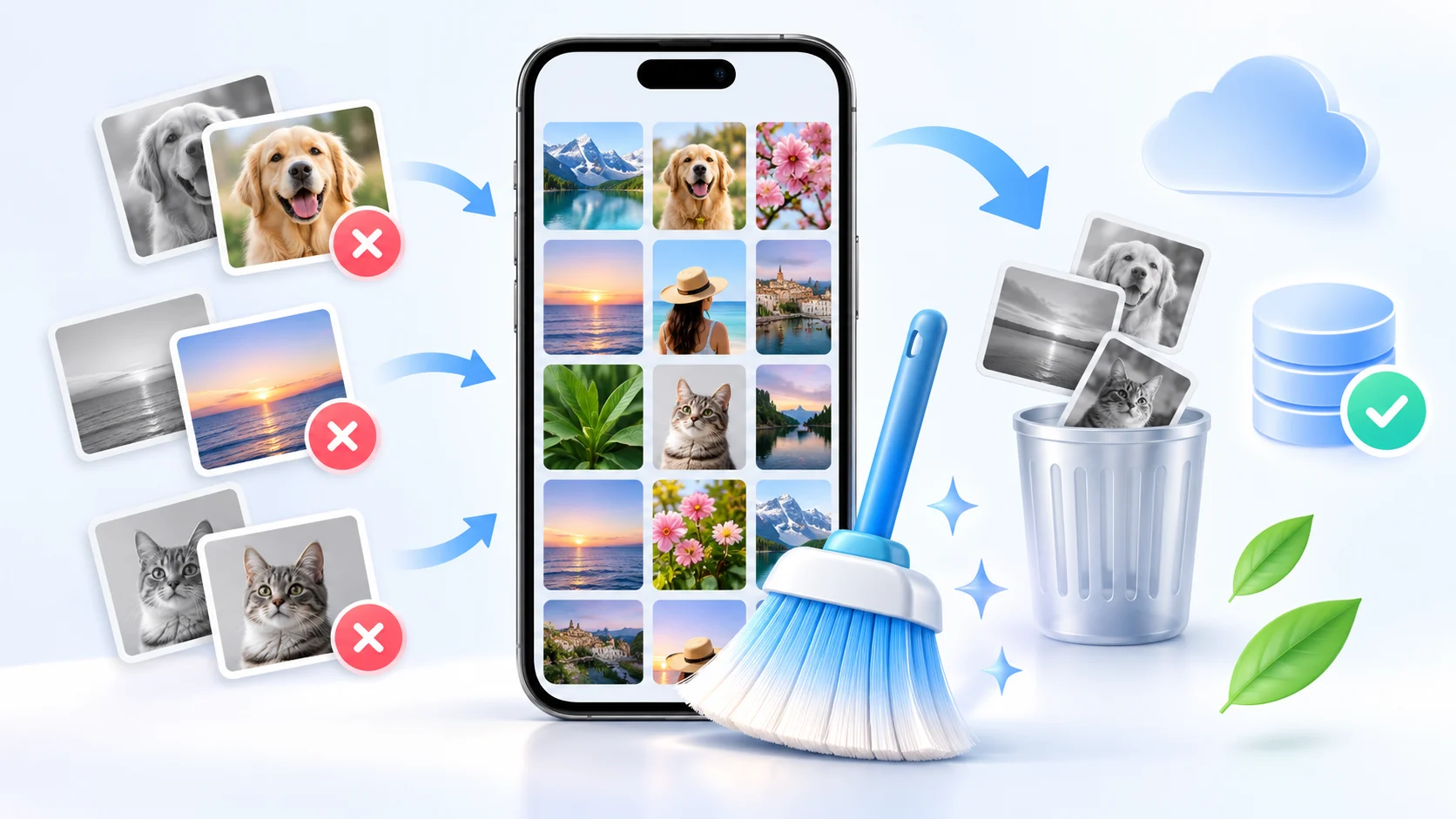
Clearing phone memory: what really takes up space?
 Put Rodrigo Oliveira
When your phone warns you that storage is full, your first impulse is to look for a... app to clean phone memory. However, on most devices, the culprit isn't a mysterious file hidden in the system: it's photos, videos, and audio files that you yourself received and never opened again. Before installing anything, it's worth finding out. what truly takes up space on your device.
This guide shows you where your storage space is, how to check it directly on the Android storage screen, and what to delete without regret. It also honestly explains what a cleaning app can actually do and what it only promises to do.
Where will space really end up?
Open Settings > Storage (on some devices, Device care > StorageAndroid divides storage space by category: applications, images, videos, audio, documents, and system files. In the vast majority of phones, the first three categories account for more than half of the total. That's where the problem lies, not in "temporary files".
The biggest accumulator is usually the Whatsapp. Everything that arrives in a group—good morning photos, forwarded videos, two-minute audio clips, stickers—is automatically saved to the device. A user with few active groups accumulates several gigabytes per year without realizing it. Within the app, go to... Settings > Storage and data > Manage storageThere is a list of files larger than 5 MB and another list of those that have been forwarded many times. Deleting this media does not delete your conversations, only the files.
Next come the videos recorded by the camera. One minute in 4K takes up around 300 MB to 400 MB, depending on the frame rate. Ten minutes of party recording consumes more space than dozens of installed apps. If you record a lot, changing the camera from 4K to 1080p already reduces consumption to less than a third, with little difference on a cell phone screen.
The order that frees up more space with less effort.
- Media received on WhatsApp and Telegram. Start with the forwarded videos. This type of editing usually yields the most gigabytes per minute of work.
- Long camera videos. Send it to the cloud or to your computer, and delete it from your device after confirming that the copy has opened.
- Downloads. The folder contains PDF payment slips, downloaded images, and old installers. Almost nothing in it needs to remain on the phone.
- Apps you haven't opened in months. Uninstalling restores the app's storage space and its data.
- Media app cache. Video and music services store previously watched clips. Clearing the cache is safe, but the space will be reused with continued use.
What does a cleaning app actually do?
A good app in this category is, essentially, a file organizer with shortcuts. It scans the storage, groups together large files, duplicates, and leftover files from uninstalled apps, and provides a button to delete them. This saves time. What it doesn't do is create space out of thin air or "optimize" the internal workings of Android.
O Files by Google It's the most straightforward option: it's free, made by Google itself, and the home screen already suggests large files, duplicate memes, and old conversation media. CCleaner and the AVG Cleaner They serve a similar function, with a free version supported by ads. For those who want fine control over folders and leftover applications, the SD Maid 2/SE It's a more technical tool.
What this category promises but doesn't deliver.
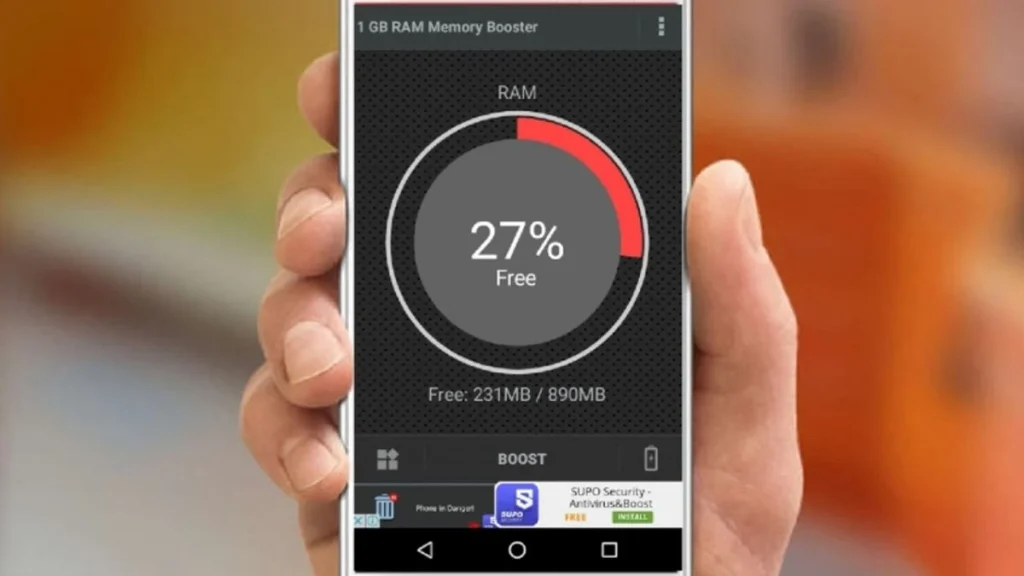
It's important to separate two things that marketing insists on mixing together. Free up storage It resolves the "memory full" warning and allows you to install apps and take photos again. Clear the RAM, Using the "turbo" button, contrary to what it might suggest, doesn't actually make Android faster. The system already manages memory automatically and keeps recent apps loaded on purpose, precisely so they open quickly when you return. Forcibly ending these processes causes the device to restart them from scratch, which drains battery and usually slows everything down.
Therefore, be wary of any app that promises a percentage increase in speed or that requires... access to all files Just to show a graph. A large part of this category in the store is, in practice, a screen full of ads with a broom icon in front. Before installing, check who posted it, how many permissions the app asks for, and if it explains what it will delete.
How much does each file type weigh, in numbers?
Much of the confusion stems from not having an idea of the order of magnitude. With approximate numbers in mind, you can look at the storage screen and know where the problem is before touching anything:
- Photo On a modern cell phone: around 2 to 5 MB each. In HEIC format, it's usually half that size with the same apparent quality.
- 1080p videosomething between 60 and 150 MB per minute, ...depending on the bitrate. At 4K, it exceeds 300 MB per minute.
- Audio Conversation data: a few hundred kilobytes each — irrelevant in isolation, considerable in thousands.
- Episode downloaded From a video service: from a few hundred megabytes to more than 1 GB, depending on the quality chosen.
- Offline map From a metropolitan area: hundreds of megabytes, and it updates automatically.
- Big gameThe file size ranges from 1 GB to over 10 GB, and the installer usually downloads another similar amount of data after the first opening.
Compare this to what you have: two thousand short family videos account for more wasted space than any single "temporary file." That's why clearing the cache frees up megabytes and organizing media frees up gigabytes.
The four silent consumers
There are categories that nobody remembers to look at because they don't appear in the gallery:
- Video and music service downloads. An episode watched six months ago continues to take up space until you remove it. It's worth checking the downloads section of each streaming app you use.
- Maps saved for offline use. Useful during the trip, forgotten afterwards — and they are renewed periodically.
- Browser downloads folder. Payment slip, PDF, image received via link. It accumulates for years without anyone going back there.
- Installation files. Packages downloaded outside the store, interrupted updates, local app backups.
None of this is system junk. These are your files, which you chose to download at some point and never reviewed — and that's precisely why automatic cleaning apps don't solve the problem: they can't decide for you.
The five-minute audit
Before installing anything, this guide provides a complete diagnosis:
- Open the system storage screen and note how much free space is available.
- See the breakdown by category — images, videos, apps, documents, other.
- Enter the larger category and sort by size, not by date.
- Check the downloads section of the video and music apps you use.
- Open your browser's downloads folder and sort by size.
- Only then decide what to delete. If the cloud backup is confirmed, deleting it from the device won't cause any loss.
In practice, this scenario usually reveals that two or three folders account for most of the storage space occupied—and that the "junk" that the apps promise to sweep away was the smallest part of the problem.
The limits: what freeing up space doesn't solve
- It doesn't make the processor faster. Free space prevents the system from running out of room to work, but performance is hardware.
- It does not recover a depleted battery. Lithium-ion batteries lose capacity with each charge cycle; it's a chemical process, not a storage issue.
- It doesn't fix broken apps. To do this, you can update, clear the cache of that specific app, or reinstall it.
- It does not increase physical memory. Nothing installed via software creates storage that the device doesn't have.
- It's not permanent. As long as the source continues to produce files—photos, received videos, automatic downloads—the storage space will fill up again.
Frequently Asked Questions
Does deleting media from WhatsApp delete conversations?
No. The app's storage manager only removes files — photos, videos, audio, and documents. The text of the conversations remains on the device. What changes is that the deleted media no longer opens within the history; if the message is recent, the sender can still resend it.
How much space does a cleaning like this usually create?
It entirely depends on your usage, so any number promised beforehand is a guess. What we can honestly say is the order of magnitude: on devices that are two or three years old and used intensively by groups and the camera, the sum of received media, long videos, and downloads usually accounts for the largest share of occupied storage. Measure the free space before and after to know your situation.
Does clearing the cache harm apps?
It doesn't cause any harm. The cache is temporary content that the app downloads to avoid repeating the download; when deleted, it is rebuilt with use. The effects are a slightly longer initial opening time and some extra internet consumption. This is different from "clearing data," which returns the application to its initial state and causes you to lose your login and settings.
Is it worth leaving a cleaning app running all the time?
That's not worth it. An app that runs in the background to monitor your device consumes exactly the resources it claims to save: memory, processing power, and battery. If you choose to use one, open it only when you need it and turn off notifications and automatic scanning.
Is there an app that can increase phone storage?
There isn't one. Storage is a physical component, defined during manufacturing. What an app can do is help you free up the space that already exists. Real expansion is only possible with a microSD card, on devices that accept it, or with external storage connected via cable.
Conclusion
Instead of hunting for a cleaner that solves everything, start with the Android storage screen itself and tackle the three biggest categories: media received in conversations, camera videos, and forgotten apps. This approach usually frees up more space in fifteen minutes than any automatic scan. An app like Files by Google serves as a shortcut to find large and duplicate files, not as a magic solution. And remember: you gain free space by deleting large files; speed by keeping the system updated and the background under control.
Read too
- Clearing memory and speeding up your phone: what really works and what's a myth?
- Clearing your phone's memory: files you shouldn't delete
- Clearing your phone's memory: what Android already does automatically.
- Memory cleanup: when your slow phone isn't out of space
- Memory cleanup: forgotten folders that are consuming your space.
- Memory cleanup: the difference between cache and application data