Cell phone as a projector: why no app projects images on its own
 Put Rodrigo Oliveira
The idea of turning your cell phone into a projector is appealing and circulates in many videos and app lists. It's worth starting with the essentials: no app projects an image. Projection depends on two physical things that the cell phone doesn't have for this purpose — one powerful light source and a optical assembly capable of focusing that light from a distance. The cell phone screen emits enough light to be seen up close, but not enough to form a clear image on a wall two meters away.
That said, there are three real ways to view your phone's content on a large screen, and two of them cost little to nothing. This guide explains each one, with the honest limitations of each option.
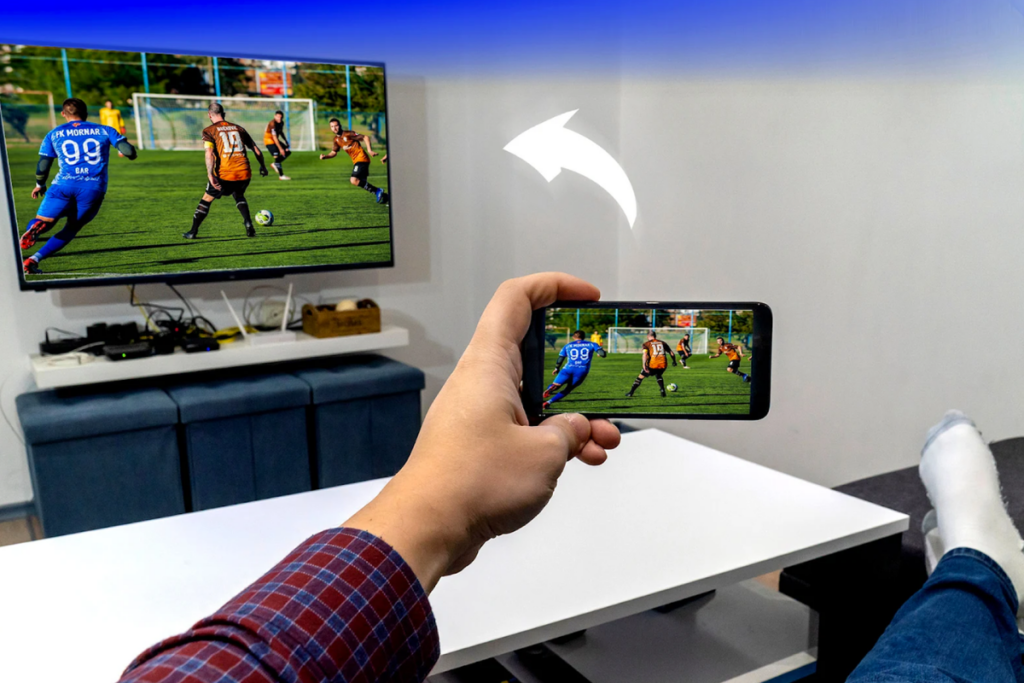
Option 1: Mirroring to TV — the most practical
It's the solution most people are looking for without knowing the name. The cell phone sends the content wirelessly to the TV, which displays it in full screen. If you have a recent smart TV, a streaming device, or a transmission adapter, you already have everything you need.
On devices powered by Google, the setup is done by... Google Home, This feature recognizes the device on the network and allows you to both stream a specific application and mirror the entire screen. On TVs with Miracast, the option is usually found in the Android shortcuts panel, with names like "cast," "smart view," or "screen mirroring." It's important to remember that the phone and TV need to be on the same wireless network.
Option 2: cable — when the network isn't cooperating.
A USB-C to HDMI adapter connects your phone directly to any TV or projector with an HDMI input. The advantage is stability: without relying on a network, there's no freezing or image lag. The limitation is that not all phones support video output via USB—this feature depends on the model, and it's worth checking the manufacturer's specifications before buying the adapter.
Path 3: true projector
If the intention is to project onto a wall, the equipment needed is a projector. There are small, portable, battery-powered models that receive the signal from a cell phone via cable or wireless transmission. What separates a good result from a disappointment is the brightness, measured in lumens, and the control of ambient light: any projector needs darkness to perform well.
Anyone who already owns a brand-name projector at home or at work can use the manufacturer's app to send content over the network. Epson iProjection, For example, it connects the cell phone to compatible projectors of that brand and allows you to display documents, photos, and web pages. Note the fundamental difference: the application send The image is projected onto a projector that already exists — it doesn't transform the cell phone into one.
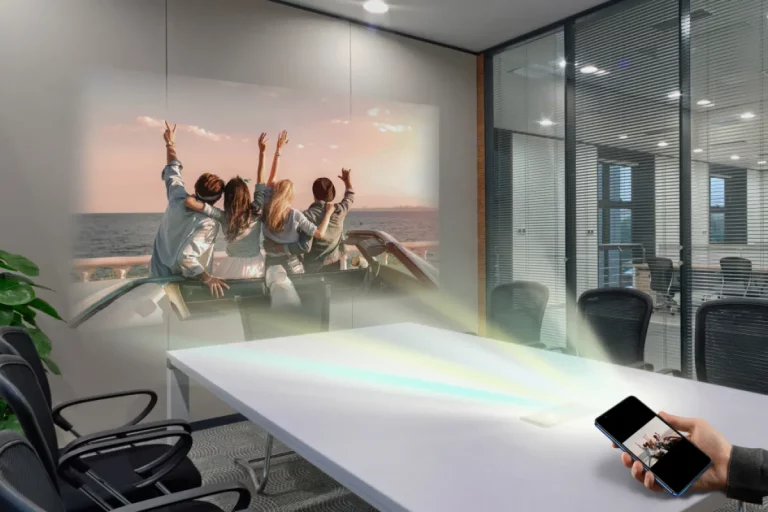
And what about the cardboard box with the lens?
This is the only instance where the phone actually projects, and it's worth understanding what to expect. The setup uses a closed box, a magnifying glass positioned at a certain distance, and the phone in the background with the image inverted. The glass projects the screen's light onto the wall.
It works as a home experiment and is a great project to do with children. The result, however, is limited by physics: the cell phone screen is a weak light source, so the image comes out dark, requires a completely dark room, and loses sharpness at the edges. It's also necessary to activate image rotation on the device or use a mirror app to compensate for the lens inversion. It doesn't replace a projector, but it's honest in what it delivers.
Why are there so many "projector simulators" in the store?
Because the demand is high. These apps display a light beam animation and a frame on the screen, without any real projection function. Some are clearly jokes; others exploit the anticipation to display advertising and request broad permissions.
Before installing any app in this category, read the description looking for the words "simulator" and "game," check the developer, and look at the permissions requested. A mirroring app needs access to the local network; it doesn't need contacts, location, or anything else. accessibility service, which allows you to read the screen and simulate touches.
Why does physics prevent an app from designing?
Projecting an image requires three physical things, and none of them are software:
- A strong light source. Projection is measured in lumens. An entry-level home projector works in the thousands; a cell phone screen emits a tiny fraction of that, and it's designed to be viewed head-on, not to illuminate a wall three meters away.
- A lens that forms the image. The distance. Without it, the light emitted from the screen scatters in all directions and doesn't draw anything.
- An optical path with adjustable focus, so the image arrives sharp at the desired size.
No app adds a light source, lens, or focal length. It's the same kind of impossibility as an app that promises to increase the device's physical memory: the promise requires hardware that isn't there.
There's a detail that reinforces the point: even if the screen were much brighter, the projected image would still be... mirrored and out of focus, Because the lens that forms the image also inverts it—that's why the cardboard box requires the video to be played first.
Which path to choose for each situation?
| Situation | Best way | Why |
|---|---|---|
| Watching with the family on the living room TV | Mirroring or the TV's own app | No cable, no loss of quality, and the TV app usually delivers a better picture than mirroring. |
| Presentation with slides at the meeting | Cable | It doesn't depend on the local network, which is precisely what fails at the time. |
| Game on the big screen | Cable | Wireless mirroring has a noticeable delay, and this makes it impractical in games. |
| Wall-mounted cinema, without TV | Real projector | He's the only one who designs; today there's an affordable entry-level option. |
| Playing with the children | Box with lens | It functions as an optical experiment, with a weak image — and teaches exactly why the app doesn't work. |
Mirroring: what usually goes wrong and how to fix it.
- Device and TV on different networks. This is the number one cause. The 2.4 GHz and 5 GHz networks of the same router count as different networks for many devices.
- Client isolation enabled on the router. A common configuration in guest networks that prevents devices from seeing each other.
- Delay and freeze Due to interference or distance from the router, moving it closer resolves the issue more than restarting.
- Black screen during video service. It's not a defect: it's content protection. The solution is to use the service's app directly on the TV and control it via your mobile phone.
- The wired video output is not working. Not all USB-C connectors support video—it depends on the device. It's worth checking the specifications before buying an adapter.
Frequently Asked Questions
My phone doesn't show the screen mirroring option. What should I do?
Check if your phone and TV are on the same wireless network and if the TV has the feature enabled in its settings. On some devices, the option is hidden in the shortcuts panel and needs to be added manually. If it still doesn't work, a wired HDMI adapter can solve the problem without relying on a network.
Why does the video freeze or lag when mirroring?
Screen mirroring depends on the quality of the wireless network. Distance from the router, interference, and many connected devices can cause freezing. Streaming a specific application is usually more stable than mirroring the entire screen because the TV retrieves the content directly from the internet.
Do all cell phones support video output via USB-C?
No. The feature depends on the model and is not present in most entry-level devices. Check your phone's technical specifications before buying the adapter, looking for mention of video output or alternative video mode on the USB port.
Does the cardboard box with a lens really work?
It functions as an optical demonstration, with a dark and blurry image, requiring total darkness. It's a good home project and an educational experiment, but it doesn't deliver quality comparable to that of a projector or TV.
Is it possible to mirror streaming apps?
Some services block screen mirroring due to content protection, and the image appears black on the TV. In these cases, use the app's own casting function, if available, or open the service directly on the TV.
Conclusion
To view content from your phone on a large screen, you have to mirror it to a TV, connect it via HDMI cable, or use a real projector. The box with the lens is a fun experiment, but the image is weak. And there's no app that promises to transform the device into a projector via software—the lens and the light are hardware, and no program creates hardware.
Read too
- Clearing your phone's memory: what Android already does automatically.
- Memory cleaning: what to do before buying a new cell phone.
- Fixing cell phone errors: five problems you can solve yourself
- Solar charger for cell phones: why no app does this.
- Viruses on your phone: what Play Protect automatically blocks
- Edit photos on your phone: the light and color adjustments that change the image.