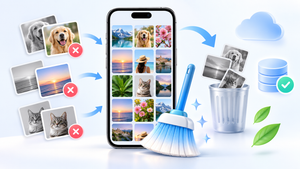
The most common fear of those seeking a Free app to clean your phone's memory. Losing your WhatsApp conversations is a justified concern: there's a button in Android settings that deletes years of history with one tap—and it's right next to the harmless button. This guide shows you how to safely clean up your history, what to delete without risk, and how to ensure that even if something goes wrong, your conversations will be restored.
Order matters: backup first, then cleanup. Reversing it is what turns an afternoon of organizing into irreversible damage.
Step 1: Ensure you have a backup before touching anything.
On WhatsApp, enter Settings > Chats > Chat backup. Check the date of the last backup, choose the Google account that will receive it, and set the frequency. If you want to include videos, check the corresponding option — it significantly increases the size of the copy, so it's best to do this connected to Wi-Fi.
Tap “backup” and wait for it to finish. Only when the date changes to today should you proceed. An important detail: Google account space is shared between email, files, and photos. If it's full, the backup will silently fail, and you'll be left with an old copy without realizing it.
Step 2: Understanding the two buttons that look the same.
In Settings > Applications > WhatsApp > Storage and cache There are two options.
- Clear cache: Safe. It only deletes temporary files, such as thumbnails and pre-loaded content. No conversations are affected.
- Clear data (or clear storage): Dangerous. It returns the app to its newly installed state. You log out of the account and the local history is deleted. Without a backup, it won't come back.
The same logic applies to any messaging app. If a cleaning app offers "deep cleaning" that includes app data, carefully read what is marked before confirming.
Step 3: Delete media without deleting conversation.
The right tool is within WhatsApp itself: Settings > Storage and data > Manage storage. There you'll find two very efficient lists — files larger than 5 MB and files forwarded many times — in addition to the data usage per conversation. You select the items and delete them. The message text remains; only the file disappears.
This screen is usually where most of the wasted space ends up: group videos, long audio files, and repeated images that no one will open again. If you want to preserve something, save it to your gallery before deleting it.
Take this opportunity to turn off automatic video downloads, both on mobile data and Wi-Fi. Without this adjustment, the space will be filled up again in a few weeks.
Step 4: The rest of the cleaning
With your conversations protected, the rest is easy. Send photos and videos to the cloud with... Google Photos, which removes from the device only what has already been confirmed to be backed up. Then use the Files by Google to locate large files, duplicates, and the downloads folder. For a more detailed scan of folders left behind by removed applications, the SD Maid 2/SE Show everything before deleting. CCleaner It is AVG Cleaner They serve a similar role, with ads in the free version.
What to ignore in all these apps
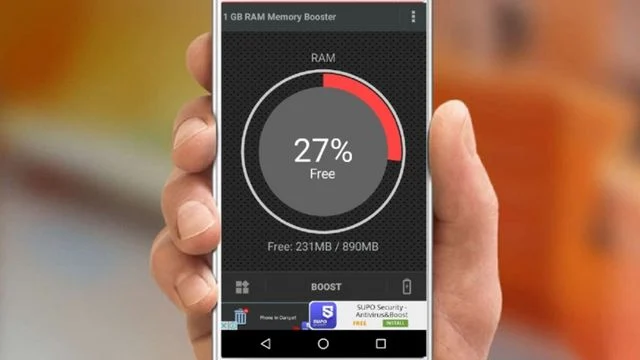
The "speed up" or "free up RAM" button doesn't help and can actually hinder those who use messaging apps. In the current Android system, the system intentionally keeps recent apps loaded and closes them automatically when it needs memory. Forcibly closing them causes the device to reload everything afterward—and, in the case of messaging apps, this is one of the most common causes of messages arriving late.
Also avoid any app in this category that asks accessibility permission. This feature allows you to read everything that appears on the screen and simulate touches, but it has no function in cleaning up files.
Where the weight really lies is inside the messenger.
Before deleting anything, it's worth knowing that the account balance is quite uneven. In an account that's been in use for years, the distribution usually looks something like this:
- Video received — almost always first place, by a wide margin. A single group video can be worth more than a thousand text messages.
- Image received — chain message, meme, good morning photo, screenshot. Individually small, together huge.
- Audio — small per unit, considerable in thousands.
- Document — PDF, spreadsheet, receipt. It takes up more space than it seems and is almost never revisited.
- Text — irrelevant in terms of space. The conversations themselves weigh practically nothing.
It is this last line that resolves the anguish: What takes up space is not the conversations themselves, but the media attached to them. You can delete almost all the data without losing a single message — and that's what conversation-based cleanup does.
Local backup and cloud backup: two places, two risks.
These are different things, and it's important to know which one you have:
- Local backup It's stored on the device itself, automatically generated from time to time. It takes up space — sometimes several gigabytes — and that's precisely why it appears on the cleanup bill. If the phone is lost or formatted, this backup will be lost as well.
- Cloud backup It's your responsibility and survives the loss of the device. It's what truly protects it, and it's what you need before any deeper cleaning.
Three checks before touching anything: the date of the last cloud backup, It depends on whether it's configured to include videos (which significantly changes the size), and whether the frequency is automatic. A backup from three months ago doesn't protect yesterday's conversations.
And the warning that prevents the worst mistake: Restoring an old backup erases everything that came after it. Backup is not a trash can; it's a snapshot of a moment.
The routine that keeps the space under control.
- Turn off automatic media downloads. On mobile networks, and consider turning off group Wi-Fi as well. It's the only real preventative measure—everything else is cleanup after the damage is done.
- Silence and clear the large groups first. They concentrate the majority of the media received.
- Use the messenger's own storage screen., This feature sorts conversations by storage space and allows you to delete only videos, only images, or only files above a certain size.
- Save what matters to your gallery before deleting. Media removed from the conversation disappears from the conversation.
- Repeat every two or three months. It's faster than an annual cleaning and prevents the appliance from malfunctioning.
Nothing in this routine requires a third-party app — and none of them do the job better, because only the messenger itself knows which file belongs to which conversation.
Frequently Asked Questions
Does WhatsApp backup take up space in my Google account?
Yes, and this is a change that caught many people by surprise: for years, backups weren't counted, and now they consume your account's quota like any other file. It's worth checking your available space before including videos in the backup, because they're what make the size skyrocket.
I accidentally deleted my WhatsApp data. Can I recover my conversations?
Only if there's a backup. Reinstall the app, log in with the same number, and accept the restore when offered—the most recent copy will be used. If there was no backup, there's no way to recover: the history was only stored on the device.
Does deleting old media delete the messages as well?
No. The storage manager only removes the files. Text messages remain in the conversation, and in place of the media, an indication appears that the file is no longer available. If it's recent, the sender can resend it.
Do I need a cleaning app to take care of WhatsApp?
No. The manager within the app itself is more accurate than any external tool because it knows the structure of conversations and shows usage by contact and by group. Use the cleaner for the rest of the storage, not for the messenger itself.
How often should I do this cleaning?
Once every two or three months is sufficient for most people. Those who participate in many active groups may need shorter intervals. Turning off automatic video downloads significantly reduces this frequency because it addresses the cause instead of the symptom.
Conclusion
Backup confirmed, cache cleared, large media deleted via WhatsApp's own manager, and automatic downloads turned off: this sequence frees up a lot of space without putting a single conversation at risk. Remember the golden rule — "clearing cache" is safe, "clearing data" is not — and the cleanup will no longer be a source of anxiety.
Read too
- Apps to clean memory: 5 options and what each one does.
- Clearing memory and speeding up your phone: what really works and what's a myth?
- Clearing your phone's memory: files you shouldn't delete
- Cleaning apps: which ones disappeared from the Play Store and what to use now.
- Clearing your phone's memory: what Android already does automatically.
- Optimize memory: why clearing RAM doesn't speed up your phone.